
A web form should change only the CRM fields you have agreed it may change. Give every field one rule: keep it, fill it only if empty, replace it with the newest answer, or ask a person. Treat a blank answer as no answer, keep opt-outs in place, and log each new request as new work on the existing contact.
Those are web form CRM update rules in one paragraph. A CRM, short for customer relationship management software, is the system where you keep customer contacts and their history. Each contact has a record, which is one person’s page, and each record has fields, such as phone, email or customer status. The integration is the connection that carries form answers into those fields.
Most owners never decide how that connection should behave. Someone sets it up once and it seems to work. Months later a good phone number has vanished, a loyal customer shows up as a new lead, or someone who unsubscribed gets the newsletter again. This guide gives you the rules to prevent that, a worksheet you can copy, and a short test to run after every change.
A web form can quietly damage good CRM data.
A form connection usually does one of two things when an enquiry arrives. It creates a brand new contact every time, or it finds the existing contact and updates every field the form sends. Both sound reasonable. Both break good records in different ways.
Creating a new contact every time gives you duplicates. A duplicate is a second record for a person you already have. The returning customer now has two histories, two owners and two sets of notes, and nobody sees the whole picture when they call.
Updating every field sounds smarter, but it treats the newest submission as the truth. If the visitor leaves the phone box empty, some setups write that empty value over the phone number you already had. If they type a nickname, it replaces the full name your team confirmed on a call.
This is not a rare edge case. Jetpack CRM’s own help page, updated on 25 April 2025, describes two ways form and API updates can work. They can clear the fields that were not sent, or change only the fields that were sent. Which one happens depends on a setting.
That is one product’s documented behavior, not a rule for every CRM. Still, it shows how much rides on a single switch.
Hidden fields can cause the same trouble. Some businesses use one form across several pages and hide the questions that do not apply. In a 2020 Adobe Marketo community thread, a user reported that hidden fields still submitted and wiped existing data, while a reply disputed whether empty values overwrite at all. The thread ended without a confirmed fix, which is exactly the confusion most owners run into.
The fix is not a better plugin. It is a written decision, field by field, about what a new enquiry is allowed to change.
Separate the request, the person and the business.
Every form submission carries three different things, and each one belongs in a different place. Mixing them up is the root of most CRM damage.
- The request is the new work. A quote, a booking, a question or a complaint. It always gets logged, because it is new.
- The person is the human who filled in the form. They may already be a contact in your CRM.
- The business is the company or household they belong to. It may already be a customer, with an owner, a status and a history.
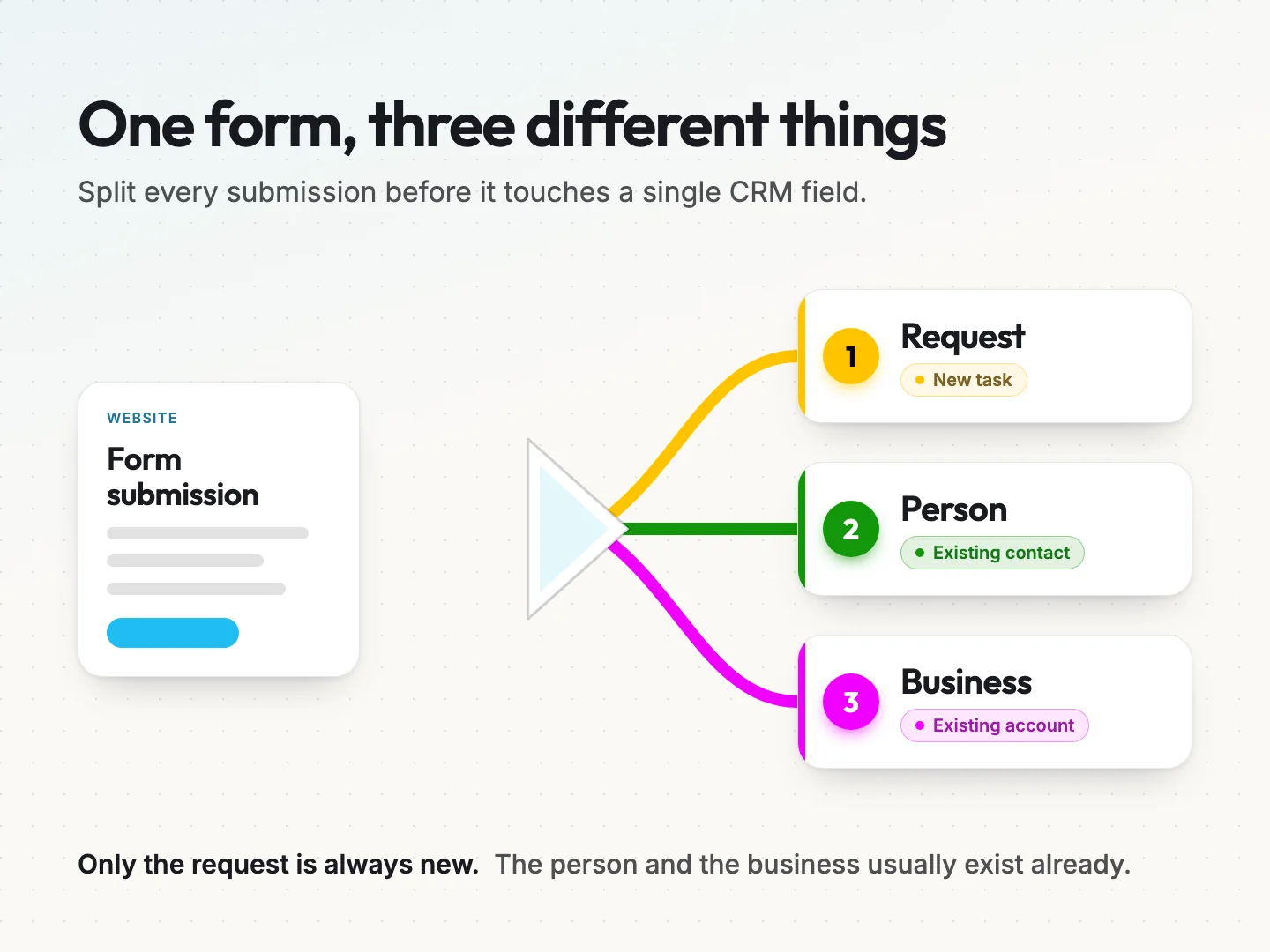
Once you see the three parts, the main rule becomes obvious. A known person with a new question gets a new task or deal on the same contact. They do not get a second contact. Their business keeps its customer status, its account owner and its agreed terms, because a contact form is not the place where those things change.
The request is the only part that is always new. The person and the business are usually things you already know, and the form should add to them rather than rewrite them.
If you are setting up the connection for the first time and need to decide which form box feeds which CRM field, start with the CRM field mapping guide. This article picks up where that one stops, at the moment a known contact sends you something new.
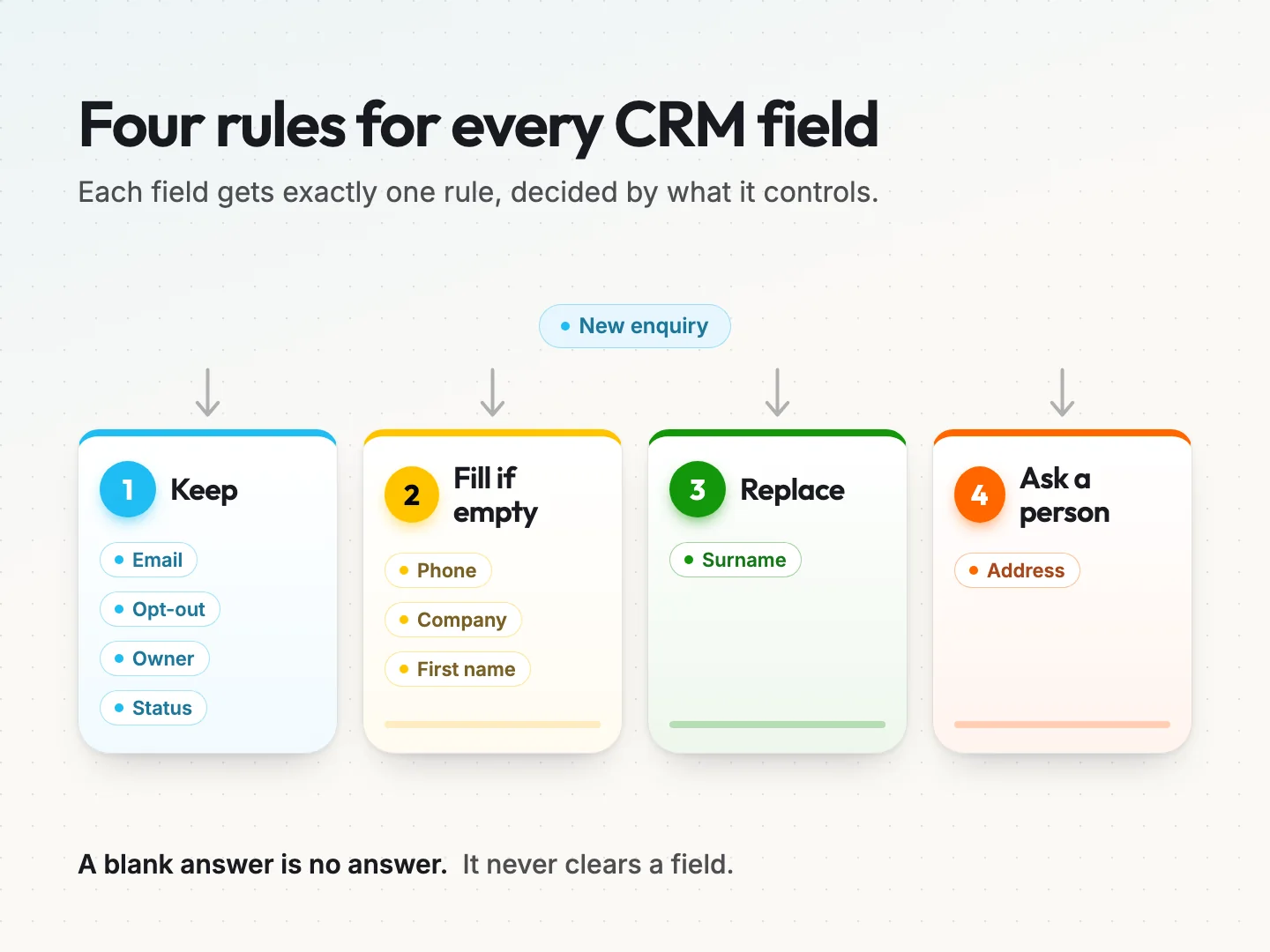
Give every CRM field one of four update rules.
You do not need to touch any settings yourself to do this. You decide the rules, and whoever runs your integration applies them in the CRM, the form tool or the automation in between. Your job is to be clear about what each field means to your business.
Here are the four rules. Every field in your CRM should end up with exactly one. Notes are the one exception, covered below.
- Keep. A form never changes this field. Use it for anything your team owns, such as account owner, customer status, agreed price or contract dates.
- Fill if empty. The form may add a value only when the field is blank. Use it for phone, company or address, where a first answer is useful but an existing one is probably better.
- Replace. The newest answer wins. Use it rarely, for details the person controls and is likely to correct, such as their own surname or job title.
- Ask a person. The form may suggest a change, but a named person approves it. Use it for anything tied to money, ownership, access or permission.
Some vendors already think this way, even if they use different words. Act-On’s help page on form updates, last updated on 3 August 2026, says its forms default to “Update only blank fields” and can be switched to “Update all fields”. It also describes a per-field “Allow Push” control that can block updates to existing contacts.
Your CRM may name these options differently or lack some of them, so treat this as one example, not a promise about your tool.
Here is a suggested starting point. These are suggestions based on what each field controls, not a standard. Adjust them to your business.
| Field | Suggested rule | Why |
|---|---|---|
| First name | Fill if empty | A typo or nickname should not replace a confirmed name |
| Last name | Replace, or Ask a person | People correct their own surname, but a typo can also slip in |
| Keep | It is usually how the CRM recognises the person | |
| Phone | Fill if empty | A blank answer should never delete a working number |
| Company | Fill if empty | The first answer helps, a later one may be a typo |
| Address | Ask a person | A second property is not the same as a move |
| How they found you | Fill if empty | The first source is the useful one for reporting |
| Marketing permission | Keep | An enquiry is not consent to marketing email |
| Account owner | Keep | Ownership is a team decision |
| Customer status | Keep | A form cannot turn a customer back into a lead |
| Notes | Add, never replace | Each enquiry adds a dated note to the history |
Notes deserve a word of their own. They are not a field to overwrite. Each new enquiry should add a dated note or activity, so the history grows and nothing earlier disappears.
Treat a blank answer as no answer.
A missing phone number on a form is not a request to delete the phone number in your CRM. It usually means the visitor skipped an optional box, used a shorter form or was on a phone and could not be bothered.
So the rule is simple. A blank never clears a field. A value should be cleared only when the person asks for it, for example by replying to say they changed numbers, and someone on your team approves the change. Whoever runs your integration can usually set this as “update only fields that were sent” or “do not overwrite with blanks”, depending on the tool.
The same applies to hidden fields. If a form hides a question, it should not send that question at all. Ask your integrator to check that hidden and optional boxes never reach the CRM as empty values.
Never let a form turn marketing back on.
Marketing permission is the one field where a mistake can cost you more than tidy data. If someone unsubscribed from your newsletter last spring and fills in a quote form today, they are asking for a quote. They are not asking to hear from you every week again.
An opt-out, meaning a record that someone asked not to receive marketing email, should survive every new enquiry. Set marketing permission to Keep. If your form has a newsletter checkbox, a fresh tick can be recorded as a new request for a person to review, rather than silently flipping the field back on.
This also keeps your lists honest. If you build email segments from CRM data, a wrong permission value spreads into every send. The email segmentation guide covers how to group people once permission is right.
Let people correct their own details, carefully.
Sometimes the newest answer is better. A customer who got married fixes her surname. A contact who moved roles updates his job title. These are the few cases where Replace makes sense.
Even then, keep a trace. A good setup stores the old value in the history or a note. If the “correction” turns out to be a typo, your team can put the right value back in seconds.
Fill in the field rule worksheet.
Here is the worksheet. Copy the table into a document or spreadsheet, choose one rule per field, add a short note where it helps, and send it to whoever runs your integration. It takes about as long as a coffee.
The rules column is left blank on purpose. Use the suggested table above if you want a starting point.
| Field | Rule (Keep, Fill if empty, Replace, Ask a person) | Who approves changes | Note |
|---|---|---|---|
| First name | |||
| Last name | |||
| Phone | |||
| Company | |||
| Address | |||
| How they found you | |||
| Marketing permission | |||
| Account owner | |||
| Customer status | |||
| Notes | |||
| Your own field | |||
| Your own field |
Under the table, answer three yes or no questions. Each one should be a yes before the rules go live.
- A new request from a known contact creates a new task or deal, not a new contact.
- A blank answer never clears a field.
- Conflicting matches go to a named person, not to an automatic merge.
Finally, turn your choices into a short plain text brief. You can paste this into an email and fill in the brackets.
Website form update rules for [business name], agreed on [date].
- Match existing contacts on [email, then phone].
- Keep these fields as they are: [list].
- Fill these fields only if empty: [list].
- Replace these fields with the newest answer, keeping the old value in history: [list].
- Send these changes to [name] for approval: [list].
- Never clear a field because a form answer is blank.
- Never change marketing permission from a form.
- Log every enquiry as a new task or deal on the matched contact.
- Send unclear matches to [name] within [time].
Keep the finished worksheet somewhere your team can find it, next to your other system notes. When something odd appears in the CRM, it becomes the first thing you check. If you want the wider view of how every tool hands data to the next, the integration data map is a good companion.
Decide what happens when the match is unclear.
Before a form can follow any field rule, the CRM has to decide who sent the enquiry. That step is called matching. Most setups match on email address, and that works most of the time. The trouble starts in the cases where it does not.
Marketing 360’s help page on preventing duplicate contacts recommends email as the match field, phone as the fallback with consistent formatting, and never name, because many people share one. The page is undated, so check your own tool’s current help before relying on it. The advice itself holds up well across tools.
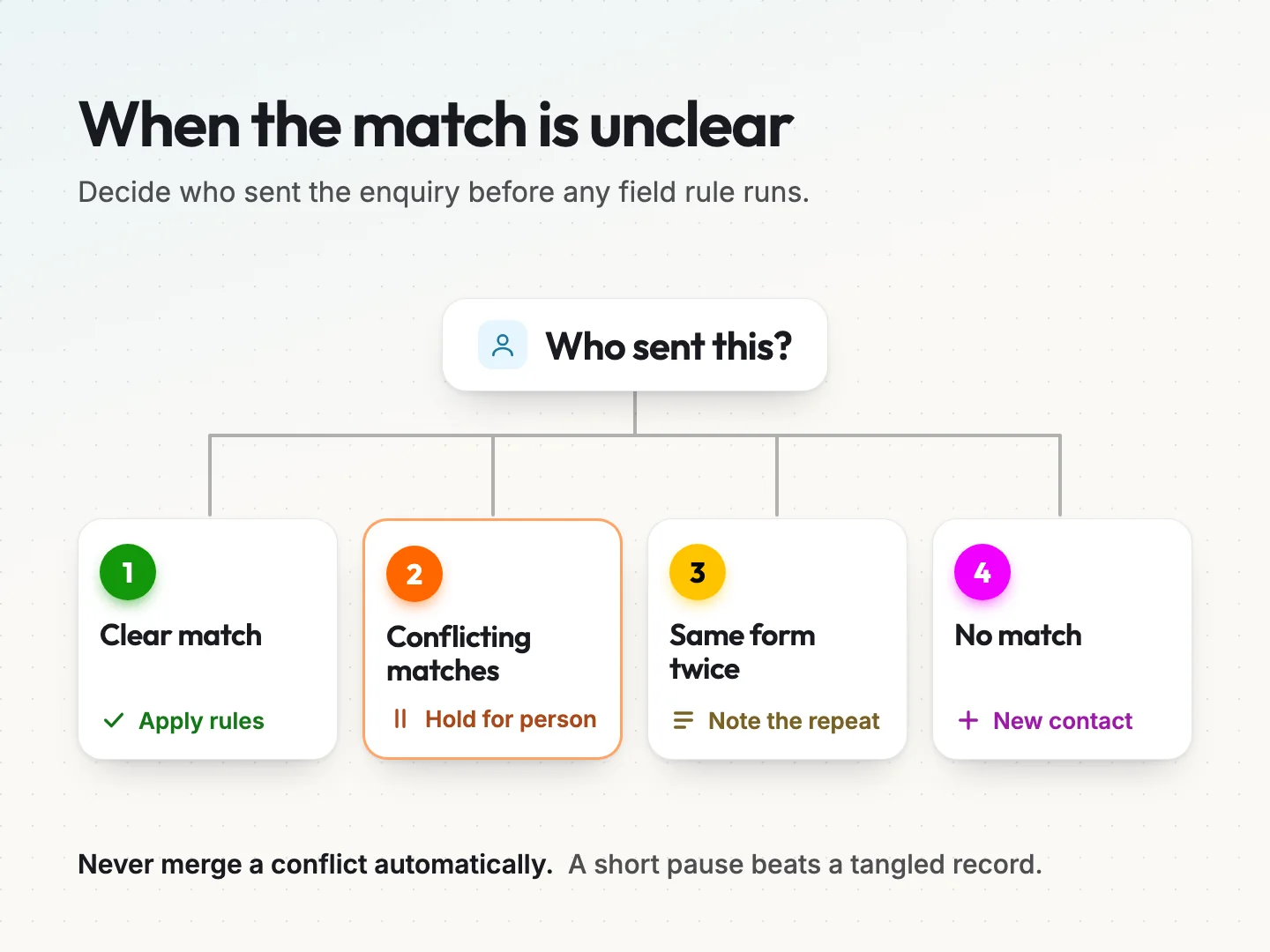
Here are the four cases worth writing rules for.
- Clear match. The email matches one contact and nothing contradicts it. Apply your field rules and log the request.
- Conflicting matches. The email matches one contact and the phone matches another. Do not merge them and do not overwrite either. Hold the enquiry and ask a named person to decide. To merge means to combine two records into one, and that is hard to undo.
- Same form twice. Someone clicks submit twice, or comes back an hour later with the same question. Keep one request and add a note about the repeat, so your team does not reply twice.
- No match. Nothing in the CRM fits. Create a new contact, but only when the details are complete enough to trust, such as a real email address.
One email address does not always mean one person. A shared inbox like an office address may belong to three staff members. A husband and wife may use one account. When your team knows an address is shared, flag it on the record so the matching rule sends those enquiries to a person.
The conflicting case is where most damage happens. An automatic merge can fold two different people into one record, and the history of both gets tangled. A pause of a few hours while someone checks is far cheaper than an afternoon untangling a bad merge.
Walk one hypothetical enquiry through the rules.
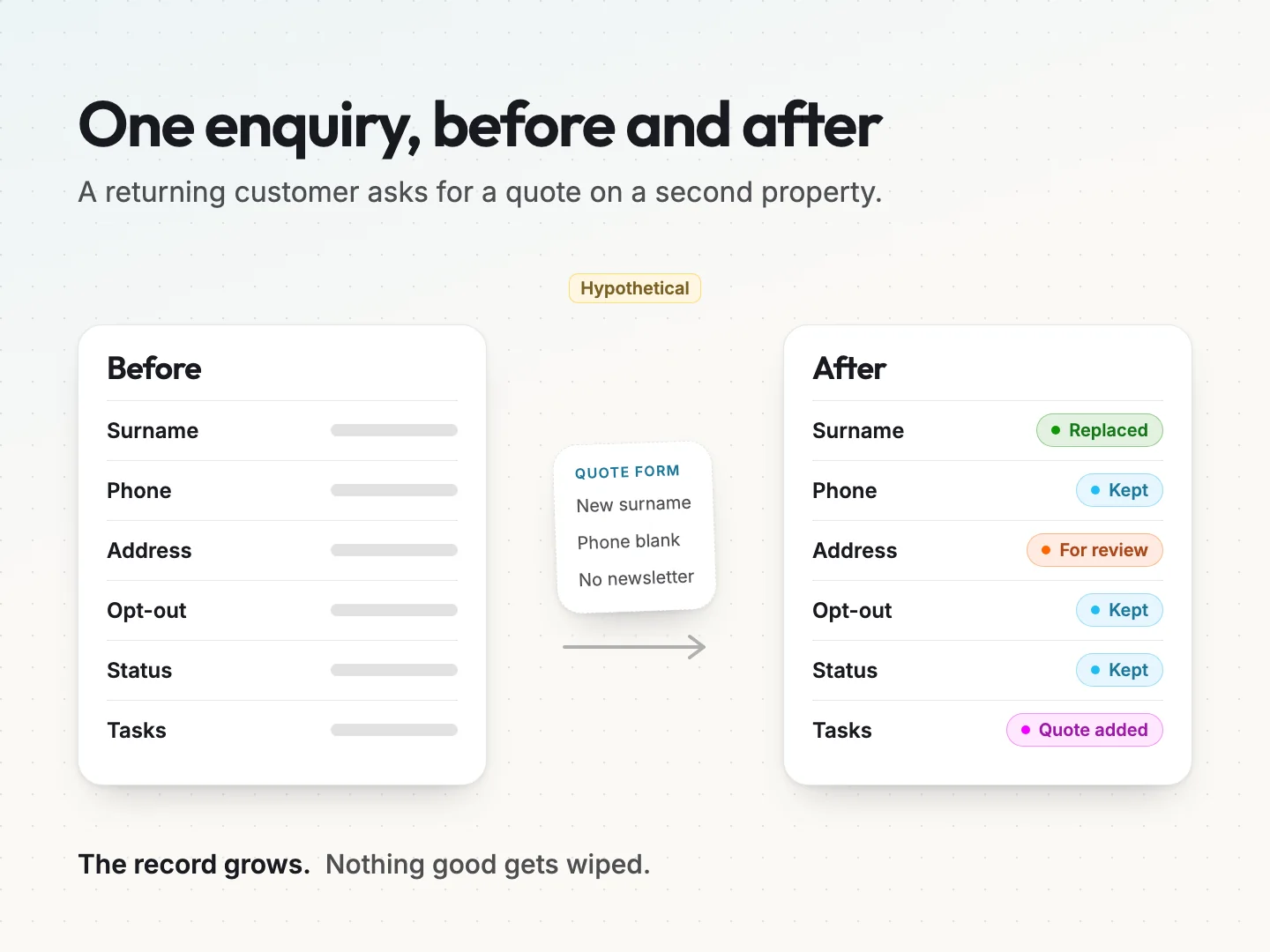
Here is a hypothetical example. The business and the customer are invented to show the rules at work.
A landscaping company has an existing customer whose home garden it maintains. She fills in the website quote form to ask about a second property she has recently bought. On the form she writes her new married surname, leaves the phone box empty and does not tick the newsletter box. Months ago she unsubscribed from marketing emails.
Here is what the rules do with that one submission.
- Matching. Her email matches one existing contact and nothing conflicts. Clear match.
- Surname. Set to Replace, so her new surname goes in and the old one stays in the history.
- Phone. Set to Fill if empty. The CRM already has her number, so the blank answer changes nothing.
- Marketing permission. Set to Keep. Her opt-out stays exactly as it was.
- Customer status. Set to Keep. She is still an active customer, not a new lead.
- Address. Set to Ask a person. The new property is added as a second site for review, not written over her home address.
- Request. A new quote task goes to her account owner, with the form answers in a dated note.
Now picture the same submission without rules. The empty phone box deletes her number. Her home address is replaced by the new property, so the next maintenance visit goes to the wrong place. A new lead record appears, and a salesperson calls a loyal customer as if she were a stranger. Her opt-out may even flip, and she gets the newsletter she asked to stop.
None of that is dramatic on its own. Together, it is the kind of slow damage that makes a team stop trusting the CRM, and a CRM nobody trusts soon stops being used.
Check the rules after any form or import change.
Field rules are not a one-time job. They break quietly whenever something in the chain changes. Recheck them after any of these.
- A new field added to the form.
- A new or updated form plugin.
- A move to a new CRM.
- A CSV import, meaning a spreadsheet of contacts loaded in bulk.
- A new automation tool between the form and the CRM.
Imports deserve extra care because they often follow different rules from forms. Jetpack CRM’s help page, linked earlier, says its overwrite settings do not apply to its CSV Importer, which matches duplicates by email and updates every other field. Again, that is one product. Still, assume nothing. Check your own import’s matching and overwrite behavior separately from its form rules.
Do not trust a success message on its own. SuiteDash’s help page on its Secure API, updated on 19 February 2026, describes a “Treat as successful” option that reports success even when no item is found. It suggests this for tools like Zapier and Make. That can be a sensible setting, but it means “success” may not prove the right record was updated.
Here is a short test you can run with one test contact.
- Create a test contact with a full name, phone, address, customer status and an opt-out.
- Submit the website form as that contact with the phone left blank and a changed surname.
- Open the record itself, not the automation log, and check every field against your worksheet.
- Confirm one new task or deal appeared and no second contact was created.
- Delete the test contact, or mark it clearly as a test, and note the date you checked.
If the enquiry never arrives at all, the problem sits earlier in the chain. Trace the enquiry through the form’s delivery steps before changing the CRM update rules.
Let automation do the routine and a person decide.
Automation is good at the routine parts. It can match on clear rules, fill empty fields, create the task, assign it to the account owner and send an alert. Those steps happen the same way every time, which is exactly what you want.
A person should decide the rest. That means conflicting matches, any deletion, any change to customer status or ownership, and anything tied to price, invoices or access to a client portal. These decisions need context that a form cannot give.
A good setup makes that split visible. The automation does its part, then drops anything unclear into a short review list with a named owner and a time to clear it. Nobody has to remember to look, and nothing changes behind your back.
If you are still choosing the CRM itself, the guide to the best CRM for customer retention compares tools on the follow-up work they handle. For building the connection, Scayver Graphix offers CRM integration, CRM automation and AI lead management automation that follow written rules like the ones above.
Final thoughts on web form CRM update rules.
A CRM is only as good as the data your team trusts in it. Web forms are one of the busiest ways new data arrives, so they deserve rules as clear as anything else in your business.
You do not need to understand the integration to fix this. You need to decide, field by field, what a new enquiry may change, and hand that decision to the person who builds it. Most fields will end up as Keep or Fill if empty. A few will be Replace. Anything touching money, ownership or permission goes to a person.
Start with your main contact or quote form. Fill in the worksheet, answer the three yes or no questions, and send the plain text brief to whoever runs your integration this week. If you would like help setting it up, talk to a specialist and bring your completed worksheet.
Was this article helpful?
Part of the free path Mastering AI Automation.