


To improve email open rates, first make sure your emails reach the inbox. Set up SPF, DKIM and DMARC on your domain, follow the Gmail and Yahoo sender rules, and email only people who asked to hear from you. Then write subject lines that say what is inside, and judge results by clicks and replies.
That last part matters more than it sounds. Privacy features now count many emails as opened when nobody has read them. Your open rate can rise or fall for reasons that have nothing to do with your writing.
This guide follows the order in which the problems happen. First you will see what an open measures. Then you will fix inbox placement, meet the rules the big mailbox providers enforce and write subject lines people trust. It ends with a 30-day plan a small team can run alongside its normal sends.
Why your email open rate is less accurate than it looks.
Your open rate is the share of delivered emails that your platform records as opened. It is an estimate, not a head count. Knowing how it is estimated keeps you from chasing a number that may be counting machines.
Counting an open: one tiny image.
Your email platform adds a tracking pixel to every message. A tracking pixel is a tiny, invisible image with a unique address. When that image loads, the platform logs an open for that subscriber.
Nothing in that process checks whether a person looked at the email. It only checks whether the image was downloaded. Three common situations break the link between a download and a real read.
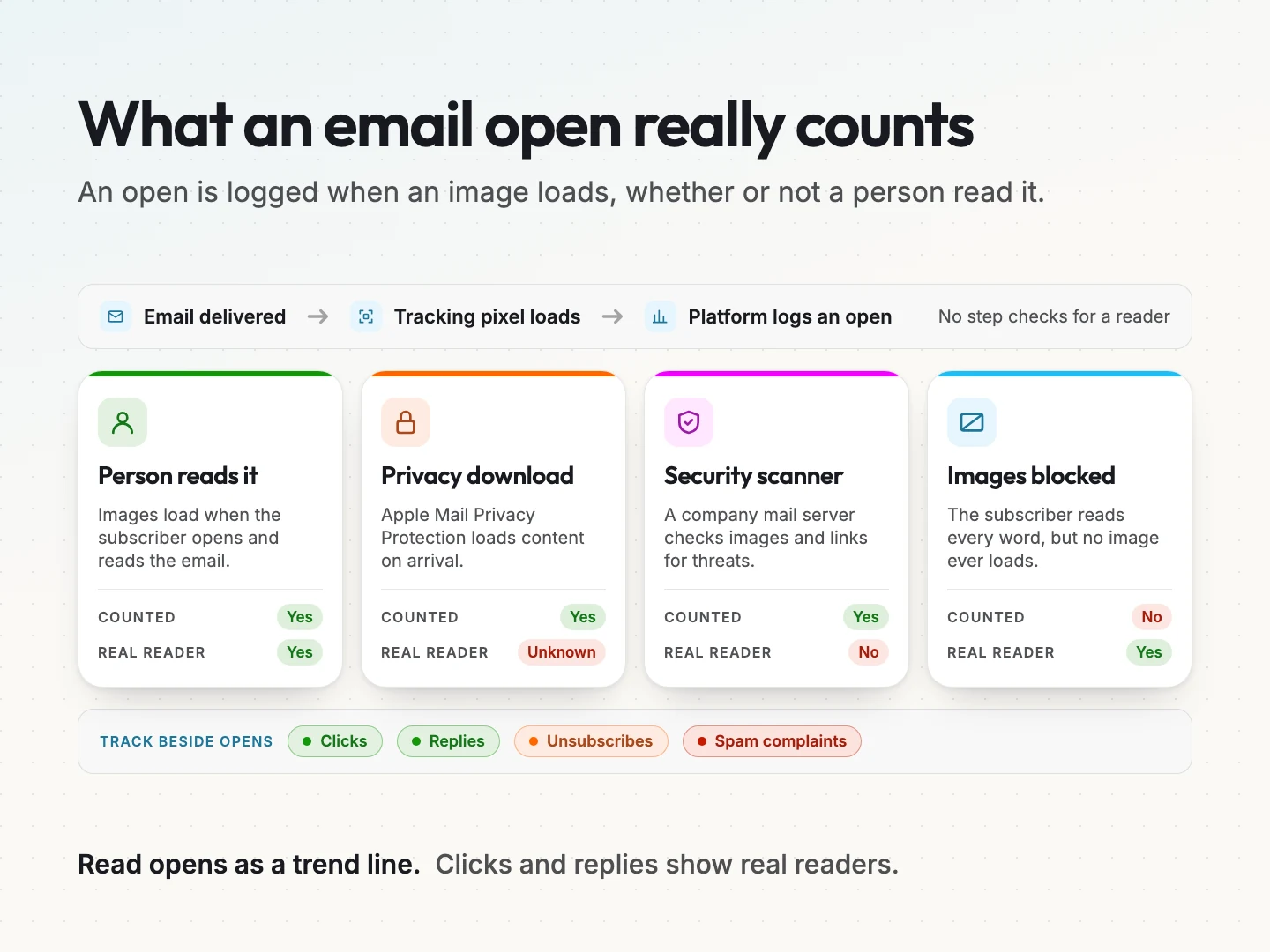
Three things that distort your opens.
Apple Mail Privacy Protection. Apple’s Mail app has a setting called Protect Mail Activity, often shortened to MPP. Apple’s guide to protecting email privacy in Mail says that with it on, your IP address is hidden from senders. Remote content is also downloaded privately in the background when the message arrives.
The tracking pixel is remote content. So it loads on delivery, and your platform counts an open whether or not the subscriber ever reads the email.
Image blocking. The opposite also happens. Some people and some workplace mail systems stop images from loading until the reader allows them. Those subscribers can read every word and still never register an open.
Security scanners. Many company mail servers check incoming links and images for threats before a person sees the message. That automatic check can load the pixel and sometimes click links too. The result looks like engagement from a subscriber who has not yet touched the email.
Put together, these mean an open rate can jump with no extra readers, or dip with no fewer. Treat it as a rough trend line, never as proof that an email worked.
Here is a hypothetical example. A bakery’s monthly newsletter shows a sudden jump in opens, yet orders, clicks and replies stay flat. Nothing about the email improved. More of its subscribers are probably reading on devices that download images on arrival, so the pixel fires for people who never looked.
Four signals to track beside opens.
Keep watching opens, but read them next to four numbers that need a real person to happen.
- Clicks. Someone chose to follow a link. Scanners can click too, so look for clicks spread over hours rather than all in the first second.
- Replies. A reply is the clearest sign a human read the email.
- Unsubscribes. A rising unsubscribe rate after a certain kind of email tells you the content missed.
- Spam complaints. These are the people who pressed “report spam”. Mailbox providers watch this number closely, and so should you.
If opens look healthy while clicks and replies fall, the opens are probably not real readers. Start your fixes with inbox placement, not with the subject line.
Reach the inbox first with SPF, DKIM and DMARC.
Deliverability is your ability to get email accepted and placed in the inbox rather than the spam folder. A perfect subject line cannot help an email nobody sees. For most small senders, the first deliverability fix is email authentication.
Authentication lives in your domain’s DNS settings. DNS is the public address book for your domain, managed wherever you bought it or host it. You add a few short text records there, and your email platform usually gives you the exact records to copy.
When an email arrives, the receiving server runs three checks against those records before it decides where the message goes.
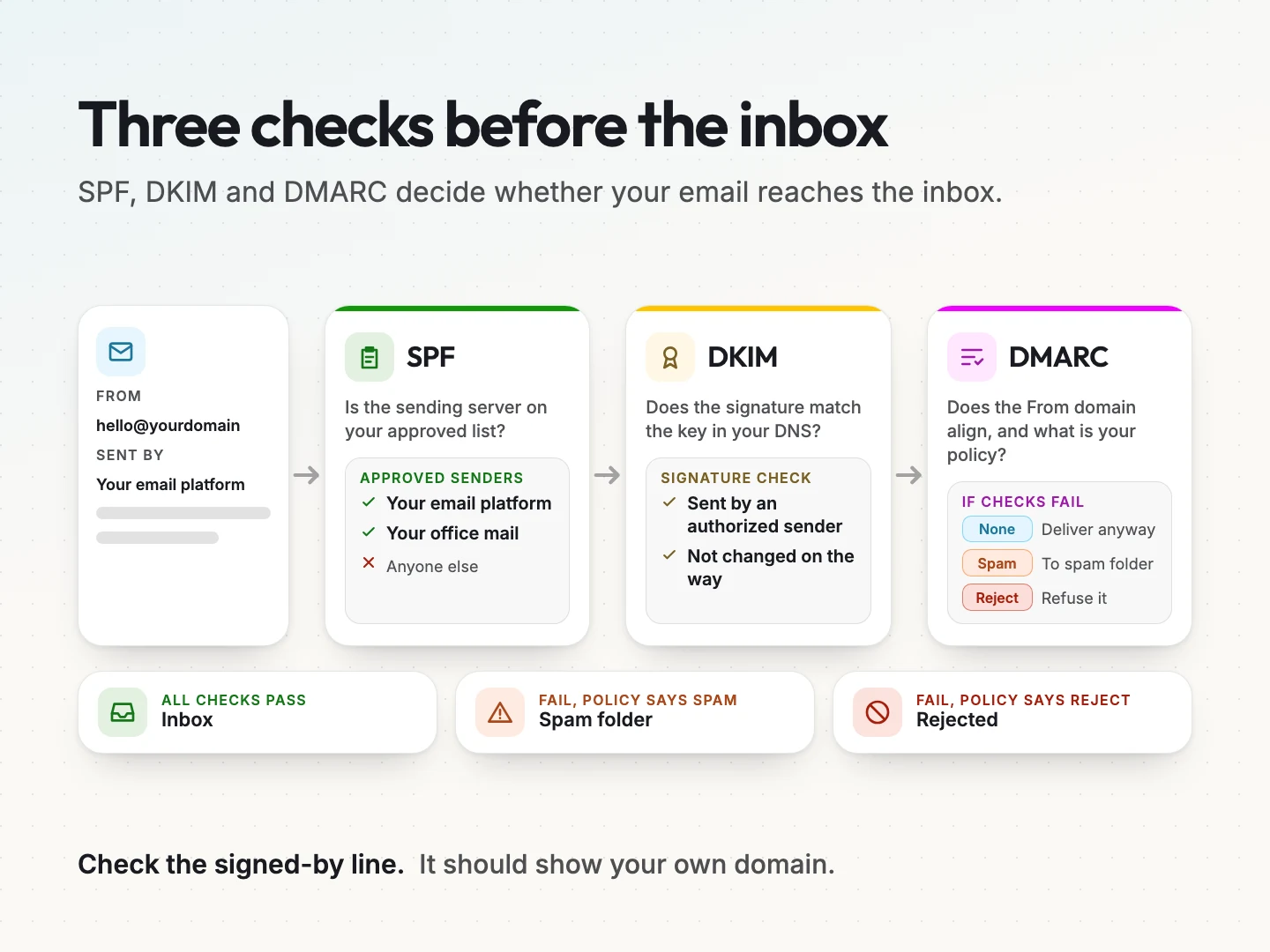
SPF: the list of approved senders.
SPF stands for Sender Policy Framework. It is a DNS record that lists the servers allowed to send email using your domain. When your newsletter arrives, the receiving server checks whether it came from one of those listed senders.
Think of it as a guest list at the door. If your email platform is not on the list, the message looks like it came from a stranger using your name.
DKIM: a signature on each email.
DKIM stands for DomainKeys Identified Mail. It adds a digital signature to each email, and your DNS holds the public key that checks it. If the signature matches, the receiver knows the message came through a sender you authorized and was not changed on the way.
SPF checks where an email came from. DKIM checks the email itself. That is why the two work best together.
DMARC: your policy when checks fail.
DMARC stands for Domain-based Message Authentication, Reporting and Conformance. It is a DNS record that sets your policy for email that fails SPF and DKIM. The policy can say do nothing, send to spam or reject.
DMARC also checks alignment. That means the domain in your From line must match the domain that passed SPF or DKIM. Without alignment, a message can pass a check for your platform’s domain while still claiming to be from yours.
A DMARC policy of none is the usual starting point. It changes nothing about delivery, but it can send you reports showing who is sending email in your name.
Those reports often turn up tools you forgot about, such as an invoicing app or a booking system that sends as your domain. Once the reports show that only your own tools send as you, ask your platform or IT provider whether a stricter policy makes sense.
Check your own domain.
You do not need to read DNS records to run a first check. Send a campaign from your platform to your own Gmail address. Open it, select the small arrow under the sender name and look at the details panel.
Look at the “mailed-by” and “signed-by” lines. If they show your own domain, your platform is sending and signing as you. If they show the platform’s domain instead, you are sending on shared settings and should finish setup.
Every major email platform has a domain authentication guide in its help center. Follow your platform’s own steps, because the exact records differ from one provider to the next. If you would rather hand this off, our email marketing services include domain authentication as part of setup.
What Gmail and Yahoo require from bulk senders since 2024.
In February 2024, Gmail and Yahoo started applying new rules to anyone who sends email to their users. Both publish those rules openly. The table below summarizes Google’s email sender guidelines and Yahoo’s sender best practices, as both pages read on October 11, 2026.
Google defines a bulk sender as one sending 5,000 or more messages a day to Gmail accounts. Yahoo uses the term bulk senders without stating a number. Both rules can change, so check the source pages before you rely on any single line.
| Requirement | All senders | Bulk senders |
|---|---|---|
| Authentication | SPF or DKIM | Both SPF and DKIM |
| DMARC | Not required | A DMARC record, policy of none or stronger |
| From domain alignment | Not required | From domain matches the SPF or DKIM domain |
| Unsubscribe | Not listed | One-click unsubscribe plus a visible link in the email |
| Honoring unsubscribes | Not listed | Yahoo says within 2 days. Google states no deadline |
| Spam complaint rate | Below 0.3% | Below 0.3% |
| Technical setup | Valid forward and reverse DNS. Google also requires TLS, a secure connection | The same |
The rules in plain English.
Your spam complaint rate is the share of your emails that recipients mark as spam. Gmail measures it in Google Postmaster Tools, a free dashboard for anyone sending to Gmail addresses. Google asks every sender to stay below 0.3%, and its guidelines advise staying below 0.1% to be safe. In practice, if 1,000 people get an email, three complaints puts you at the limit.
One-click unsubscribe means the subscriber can leave from a button the mailbox shows next to your name, without visiting a page or logging in. Most email platforms add this for you. Check that yours does, and that the visible link in your footer also works.
Small senders and the base rules.
It is tempting to read “bulk sender” and decide none of this applies to you. Look again at the first column. Every sender to Gmail and Yahoo must authenticate and keep complaints below 0.3%.
Meeting the bulk rules early also costs little. You set up DMARC once, and you never have to scramble if a busy season pushes your volume up.
Write subject lines people trust enough to open.
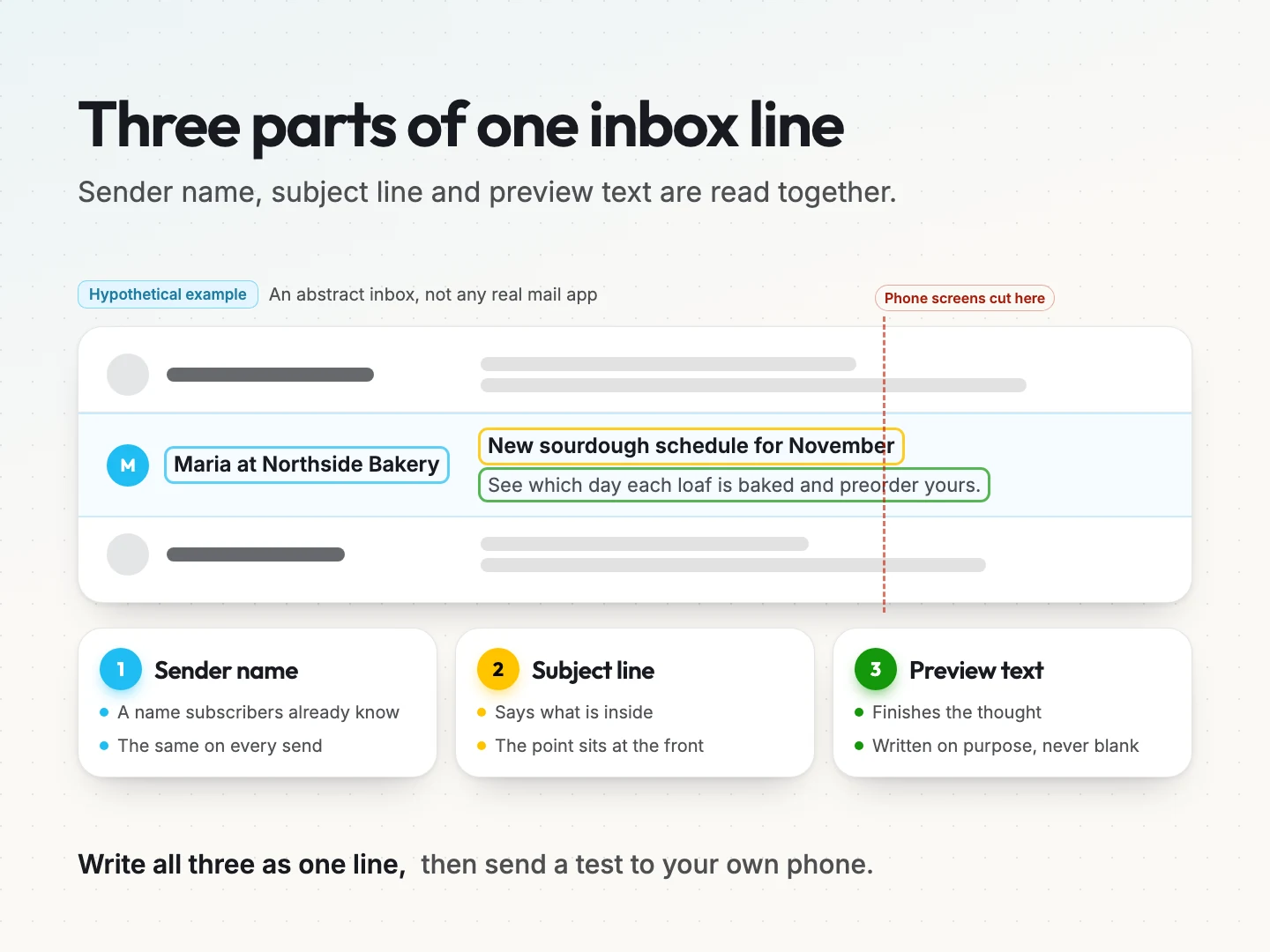
Once your email reaches the inbox, the reader sees three things before deciding: the sender name, the subject line and the preview text. Preview text, sometimes called the preheader, is the short line of text that appears after or under the subject.
These three pieces read as one line in most inboxes. Write them together, not one at a time.
Describe the contents plainly.
The most reliable subject line tells people what they will get. “New sourdough schedule for November” beats “You won’t believe what’s rising.” This is a hypothetical bakery, but the point holds for any small business.
A clear line also protects you later. People who open a vague email and find something unexpected are more likely to unsubscribe or report it as spam.
Use a sender name people recognize.
People decide whether to open based on who sent the email as much as what it says. Use the name your subscribers know. That might be your business name, or a person plus the business, such as “Maria at Northside Bakery.”
Keep it consistent. Changing the sender name from one send to the next makes your email look unfamiliar, and unfamiliar email gets ignored.
Let the preview text finish the thought.
If you leave the preview text blank, many inboxes fill it with the first words of your email, which is often “View in browser.” Write it on purpose instead.
The best preview text adds the next piece of information. Subject: “Your spring tune-up slot is open.” Preview: “Pick a morning that suits you and book in a few taps.” That example is a hypothetical home services reminder.
Put the point at the front.
Many of your subscribers read on a phone, where the inbox cuts long subject lines short. Put the words that matter in the first half of the line so the meaning survives.
There is no single ideal length that works for every list. Write the line, then send a test to your own phone and see what shows.
Personalize only with data you trust.
A first name in the subject line can help, but only when your data is clean. A raw merge tag where the name should be, or the wrong name, damages trust faster than no name at all.
Often the more useful personalization is relevance. Mentioning the product someone bought or the service they booked feels personal without any risk of a broken merge tag.
Skip shouting and spam-style tricks.
Avoid writing whole words in capitals, stacks of exclamation marks and fake reply or forward labels like “Re:” on a first email. These tricks can win one open. They also teach people to distrust your name.
If writing these lines every week feels like a chore, our email copywriting service can draft subject lines and preview text in your voice.
Keep your email list clean, engaged and permission based.
Mailbox providers watch how your subscribers react. Email that people open, read and reply to builds your reputation. Email sent to people who ignore it or never asked for it drags your reputation down.
Use confirmed opt-in.
Confirmed opt-in, also called double opt-in, sends a confirmation email after someone signs up. They join your list only after clicking the link. This keeps out typos, fake addresses and people who were signed up by someone else.
Send a welcome email that restates the promise.
Your welcome email is the best time to set expectations. Tell new subscribers what you will send and how often. People who know what to expect are less likely to mark you as spam later.
Re-engage, then remove.
Over time, some subscribers stop engaging. Before you remove them, send a short re-engagement email asking whether they still want to hear from you. Keep the ones who respond. After that, remove the rest.
A smaller list of interested people protects your complaint rate and your inbox placement. That trade is almost always worth it.
Never buy or rent a list.
Purchased lists are full of people who never agreed to hear from you. They complain, they ignore your emails and some addresses are traps set up to catch spammers. One purchased list can undo months of careful sending.
Keeping a list clean is easier when your sign-up forms, customer records and email platform share data. Our CRM automation work connects those systems so unsubscribes and bounces update everywhere at once.
Send the right email to the right people.
Relevance is one of the strongest levers for engagement. A subscriber who gets an email about something they care about is more likely to open it, click it and stay on your list.
You do not need a complex setup to start. Pick one useful split, such as new customers versus repeat customers, or people interested in one service versus another. Send each group a version that fits them.
Segmentation deserves more than one section, so it has its own guide. Read our guide to email segmentation for small businesses to choose your first segments and build them in your platform.
Test send times and subject lines on your own list.
There is no universal best day or time to send email. Your audience has its own habits, and the only way to find them is to test.
Run a simple A/B test.
An A/B test sends two versions of an email to small, random parts of your list. You change one thing, such as the subject line or the send time, and keep everything else the same. Then you compare the results.
Most email platforms can run this for you. Some send the winning version to the rest of the list automatically.
Pick the winner by clicks, not opens.
Privacy features and scanners inflate opens, so an open-based winner can be a false winner. Set your test to choose by clicks where your platform allows it.
Test one change at a time, and only on a list large enough to give a clear difference. If both versions perform about the same, keep the simpler one and test something else next time.
Is it deliverability or the subject line?
When results drop, use the pattern to find the likely cause. This is a reasoning shortcut, not a rule, so confirm it before acting.
- Low opens and clicks across every email and every segment usually point to inbox placement. Check your authentication and your complaint rate first.
- Low opens on one email only usually point to the subject line, sender name or timing of that send.
- Normal opens but almost no clicks point to the content, or to opens that came from privacy downloads rather than readers.
Improve email open rates in 30 days.
You can work through the steps in this guide in about a month, one theme per week. Before you start, write down your current open rate, click rate, unsubscribe rate and complaint rate. That record is your baseline.
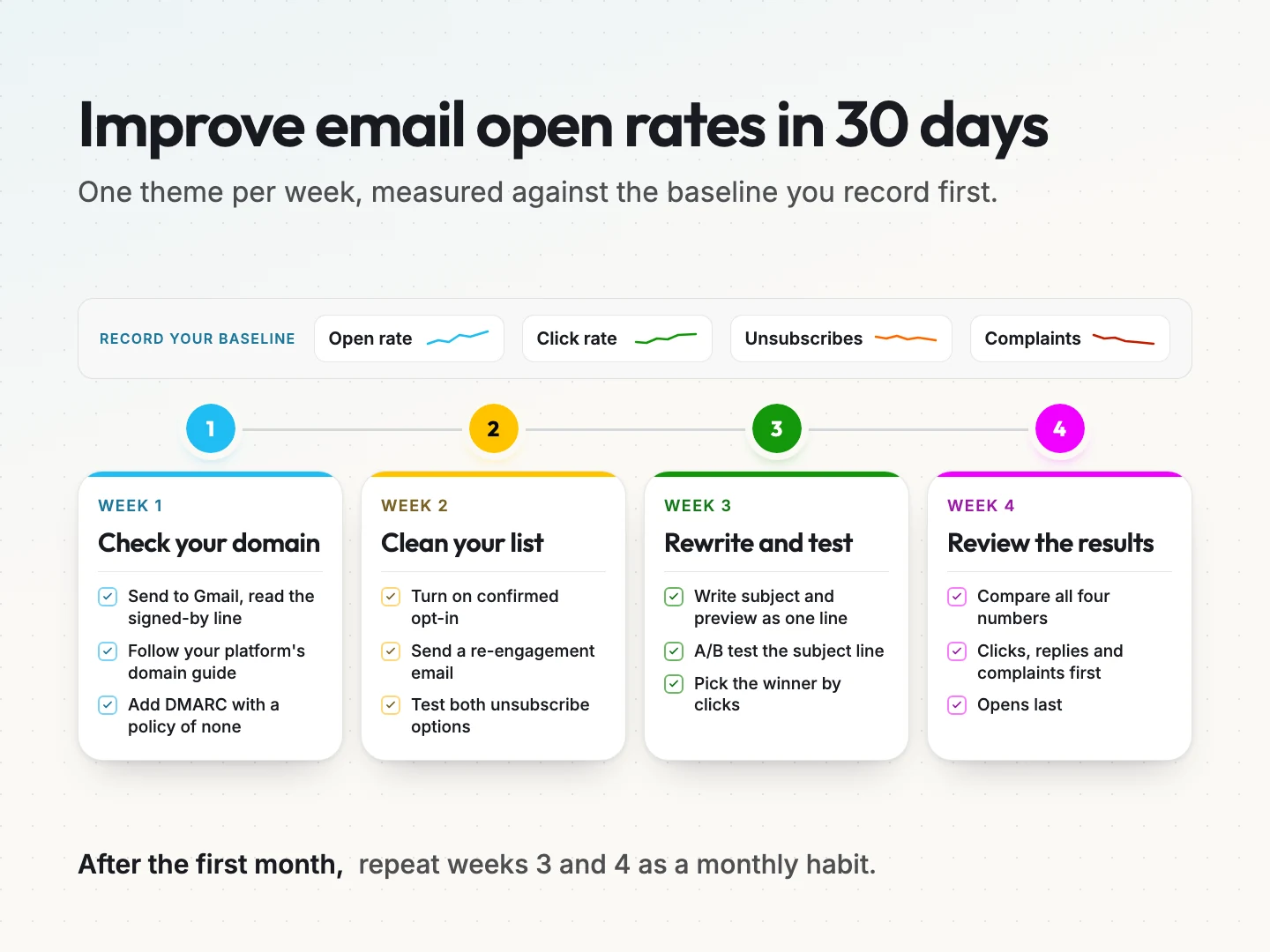
- Week 1. Check your domain. Run the Gmail check from the authentication section. If your own domain is not in the “signed-by” line, follow your platform’s domain authentication guide. Add a DMARC record with a policy of none.
- Week 2. Clean your list and check unsubscribes. Turn on confirmed opt-in for new sign-ups. Send a re-engagement email to subscribers who have not opened or clicked in a long time. Test that the one-click and footer unsubscribe both work.
- Week 3. Rewrite and test. Rewrite your next subject line and preview text as one line. Run an A/B test on the subject line and pick the winner by clicks.
- Week 4. Review against your baseline. Compare all four numbers with your starting record. Look at clicks, replies and complaints before you look at opens.
After the first month, repeat weeks 3 and 4 as a monthly habit. If you want the routine parts to run on their own, our email automation work sets up welcome, re-engagement and cleanup flows inside your platform.
Final thoughts on improving email open rates.
Better open rates start before anyone sees your subject line. Authenticate your domain, follow the rules Gmail and Yahoo publish and send only to people who asked. Then write honest lines and judge each email by what people do after they open it.
Keep your expectations honest too. Your open rate will never be a perfect count of readers. Use it as one signal among several, and compare against your own baseline rather than someone else’s average.
If you want a second pair of eyes on your setup, talk to a specialist about an email deliverability and campaign review.
Was this article helpful?
